Two-factor authentication (OTP)
What OTP and two-factor authentication are
OTP (one-time password) is a six-digit code that is valid only for a short time and for a single sign-in. It is generated by an app on your phone (an authenticator) and changes every 30 seconds.
In BrandCloud, OTP serves as the second step of signing in, known as two-factor authentication (2FA):
- Something you know: your password.
- Something you have: a phone with an authenticator app that shows the current code.
The code is calculated directly on your phone from a shared secret key and the current time. Your phone therefore needs neither internet nor signal to generate it, and the code never travels by email or over a network where someone could intercept it.
What two-factor authentication gives you
A stolen or leaked password is no longer enough to sign in to your account. An attacker would also need your phone.
- Protection against phishing and password leaks. Even if you enter your password on a fraudulent site or it leaks from another service, nobody can get into BrandCloud without the code.
- Better-protected company data. You protect brand assets, smartpages, e-shop orders and user and team management.
- Works offline too. The authenticator generates codes without internet or signal, so you can sign in abroad or on a plane.
- Easy to use. Setup takes about 2 minutes, and when signing in you just type 6 digits.
- A safety net if you lose your phone. Backup recovery codes (or SMS) keep you able to access your account.
What you will need
- An authenticator app, e.g. Google Authenticator, Microsoft Authenticator, Authy, or a password manager with TOTP support (1Password, Bitwarden). All of them are free.
- Access to your BrandCloud account and your password.
- A safe place to store your recovery codes (a password manager, or a printed copy in a safe).
How to set up two-factor authentication
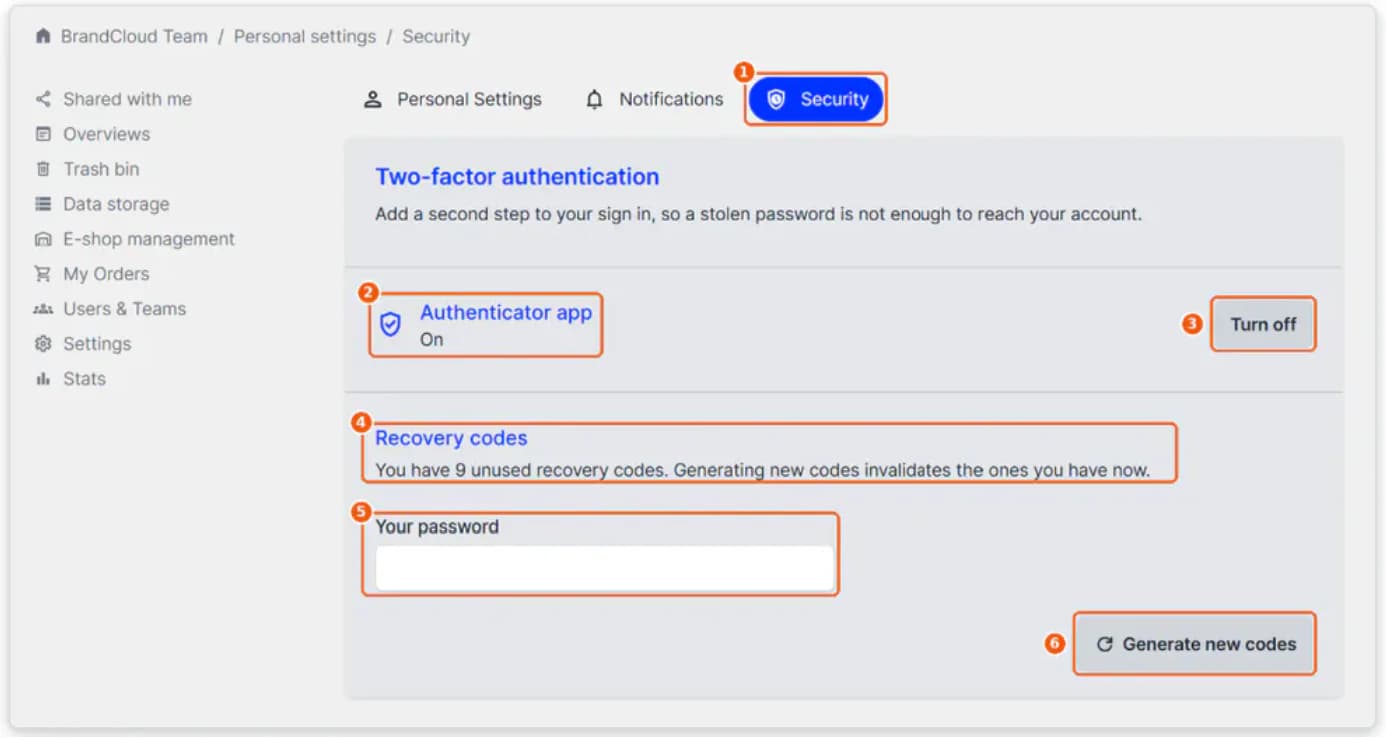
Each user turns on two-factor authentication themselves in their profile: Personal settings → Security.
- Install an authenticator app on your phone (see above).
- Sign in to BrandCloud, open Personal settings and go to the Security tab (1).
- In the Two-factor authentication section, click Turn on next to Authenticator app (2).
- In your authenticator app, choose to add an account and scan the QR code shown in BrandCloud. If you can’t scan it, type the text key shown below the QR code into the app.
- To view your recovery codes, enter your BrandCloud account password.
- Save the recovery codes that BrandCloud shows you in a safe place. Without them, you might not be able to get into your account if you lose your phone.
When you are done, the Authenticator app shows the status On.
Signing in with a verification code
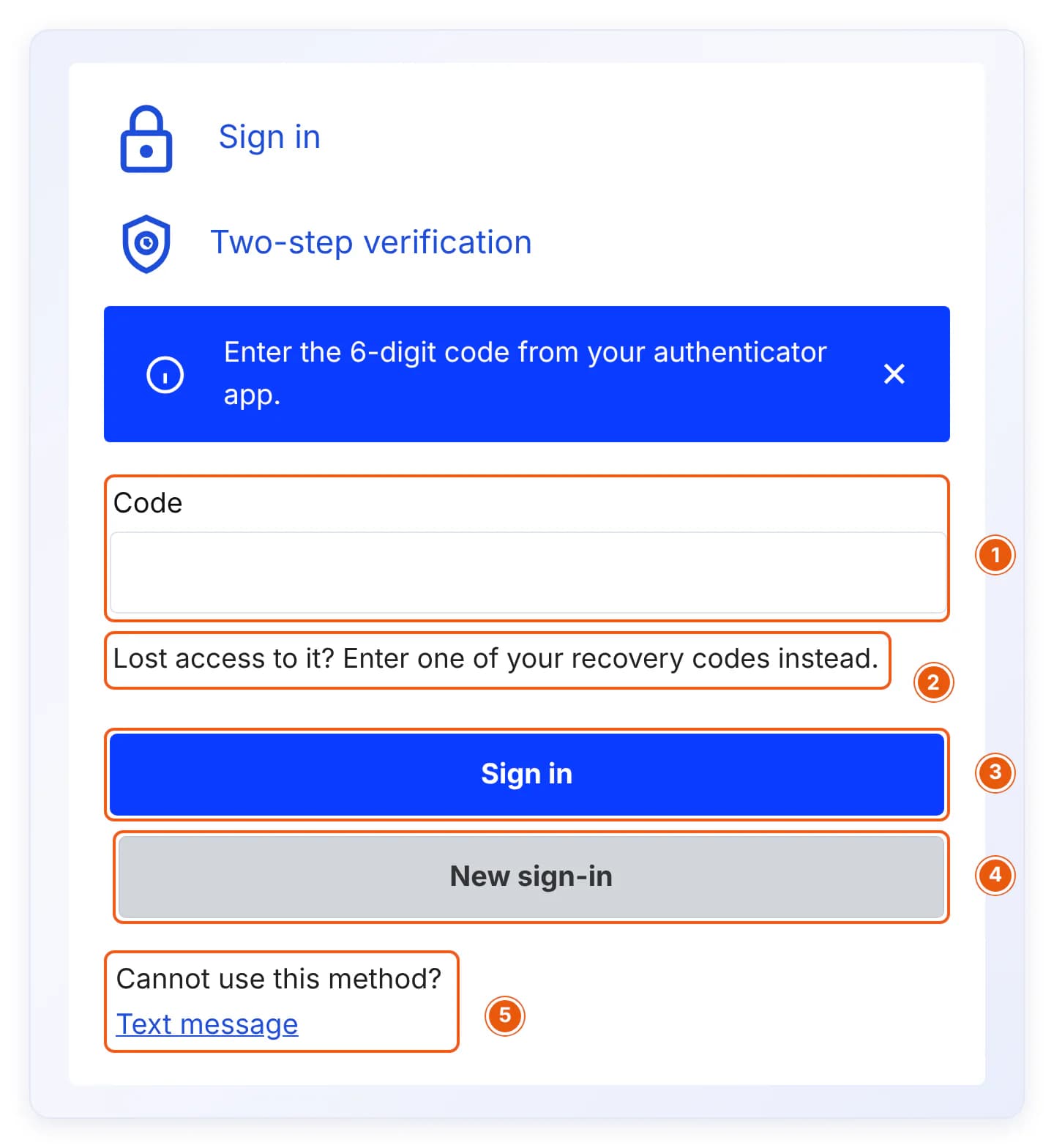
After you enter your email and password, BrandCloud asks for the 6-digit code from your authenticator app.
- Open the authenticator app on your phone and find the BrandCloud account.
- Type the current code into the Code field (1). If the code is about to expire, wait for a new one.
- Click Sign in (3).
Other options on the screen:
- Recovery code (2): If you can’t use the app, enter one of your recovery codes in the same field.
- New sign-in (4): Cancels the sign-in in progress and takes you back to entering your email and password.
- Text message (5): Switches to verification with a code sent by SMS. This option is shown only to users who have SMS activated by the BrandCloud administrator.
Backup methods: recovery codes and SMS
Recovery codes
- You get them when you turn on two-factor authentication. Use them when you don’t have your phone at hand, lose it, or delete your authenticator.
- Each code can be used only once. You enter it in the same field as the code from the app.
- You can see how many codes you have left in Personal settings → Security → Recovery codes.
- If you are running low or suspect someone has seen them, enter your password and click Generate new codes. This invalidates your previous codes.
- Keep them away from the phone with your authenticator: in a password manager or printed in a safe place. Never send them to anyone.
SMS verification (on request)
- At a user’s request, we can add verification with a code sent by SMS to your phone.
- Once activated, a Text message link appears on the sign-in screen below the text “Cannot use this method?”.
- To activate it, contact BrandCloud support and provide the phone number the codes should be sent to.
- SMS is convenient but less secure than an authenticator. We recommend using it only as a backup.