Folder
Move & Copy
The Move and Copy functions allow you to reorganize content within a repository. You can also move content between multiple BrandClouds if you have editing rights in each.
When you move content, it is removed from the original location. If the new location is inaccessible to certain users, they will lose Access until permissions are updated. Copying content creates a duplicate in the selected location, preserving access in the original location.
How to move or copy
- Select the folders or smartpages you want to move or copy.
- In the right column of the page, select Move or Copy (alternatively, use the pop-up window above the destination selection).
- Choose the target location in the structure.
- Click Send.
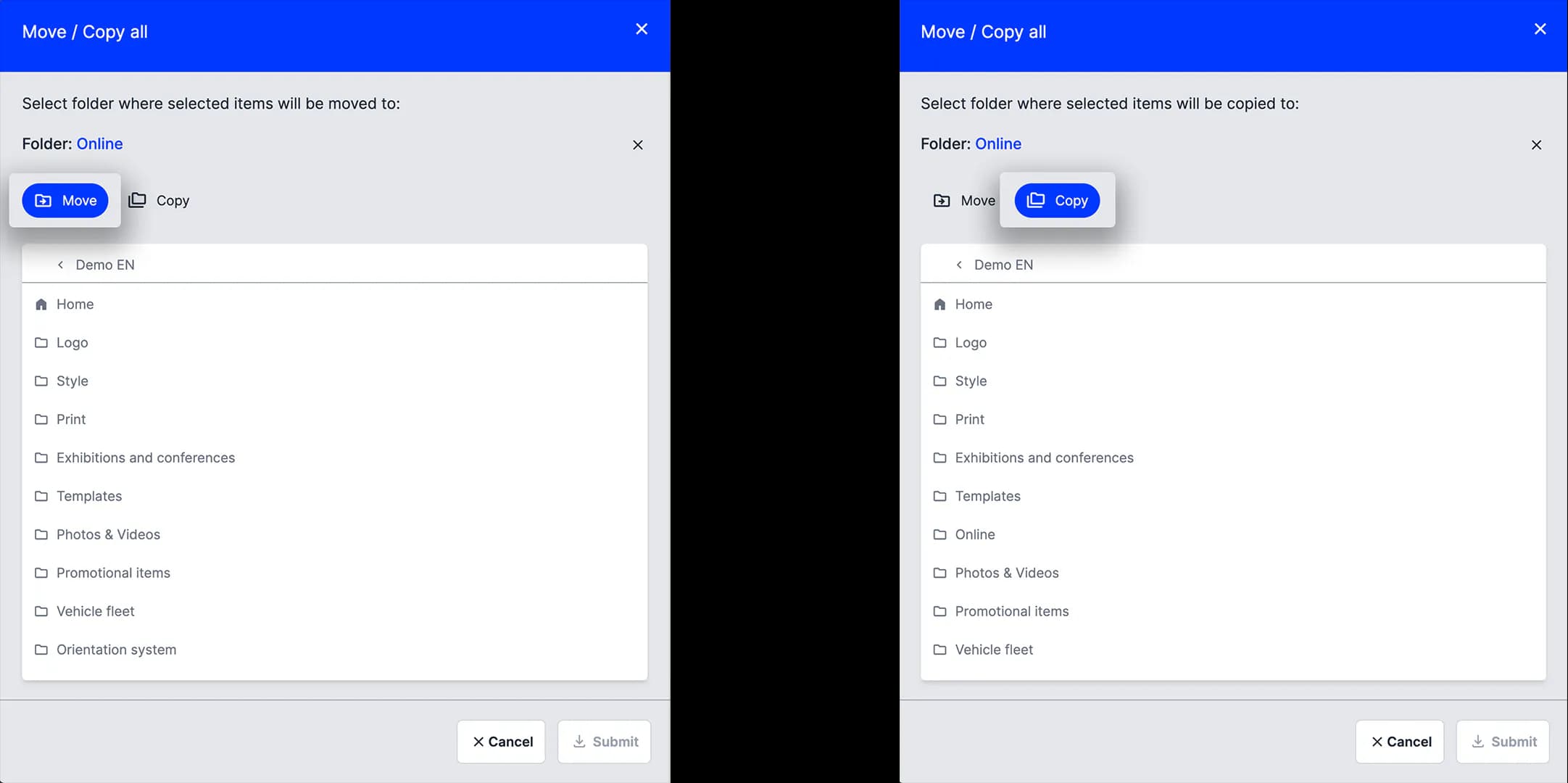
Move function window & Copy function window
Move or copy between BrandClouds
You can only move or copy content in BrandClouds where you have editing rights and access to the relevant structure. Leave the current BrandCloud structure, select a target BrandCloud from the list of accessible BrandClouds, and complete the move or copy.
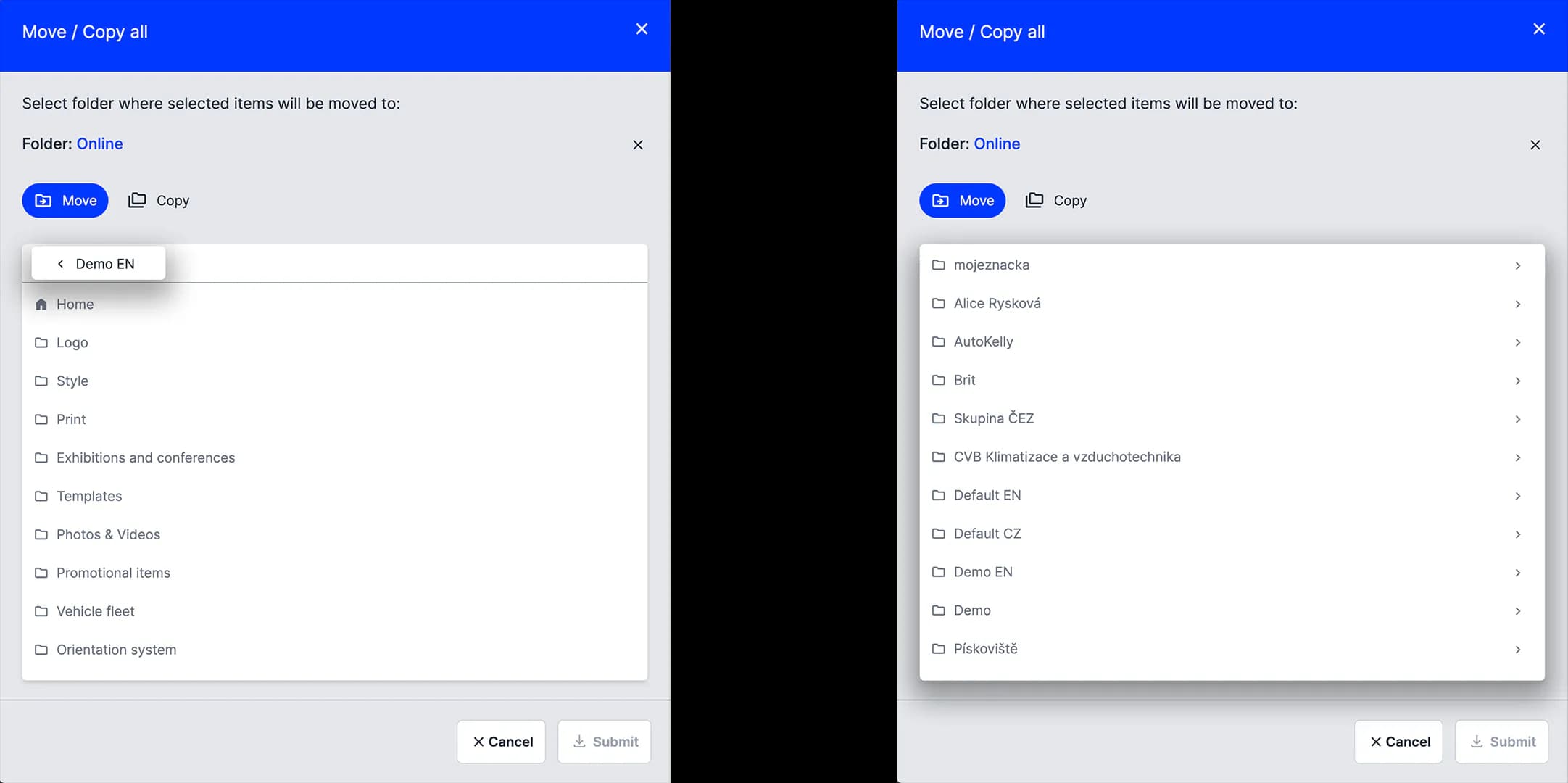
Tutorial
What can you learn?
- How to move or copy folders, smartpages, or parts of a smartpage
- How to handle content that is not visible on a smartpage