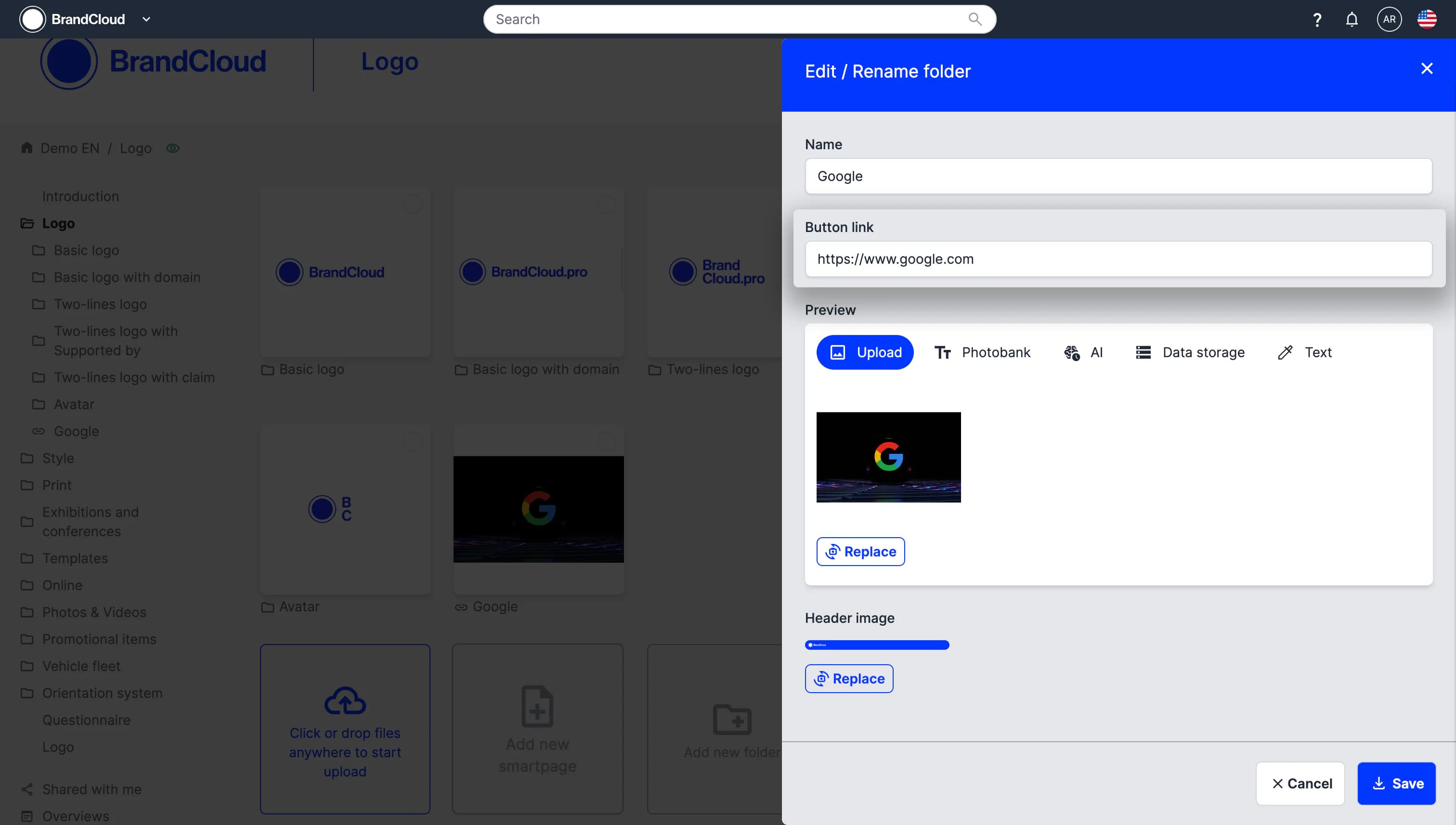
Folder Editing
You can edit and customise a folder so that its name and visual settings match your project requirements. A folder can also be converted into a link, allowing it to open a specific URL instead of displaying content.
How to edit a folder
- Hover over the folder you want to edit.
- Select the three-dot icon in the bottom-right corner of the folder tile.
- Select Edit.
- Update the folder settings as needed.
- Select Save to apply your changes.
How to turn a folder into a link
You can convert a folder into a direct link to any URL. This allows you to navigate to a specific location without creating a smartpage or using additional linking methods.
Creating a linked folder during creation
When creating a folder, enter the target URL in the Button link field. You may add a title or preview image. The top-bar image is not used for linked folders.
Converting an existing folder into a link
To convert an existing folder, ensure that it contains no content. If the folder includes assets or child folders, the link field is not available. This prevents link settings from replacing existing content.
URL behavior
You can use any URL type, internal or external. Linked folders always open the URL in a new window.