Tagging
Tagging allows you to organize content and make it easier to find. You can assign one or more tags to any uploaded asset, creating groups that can later be used to filter searches.
Tagging on a smartpage
1. Enter edit mode and select all assets you want to tag.
2. In the right column, click Edit Tags.
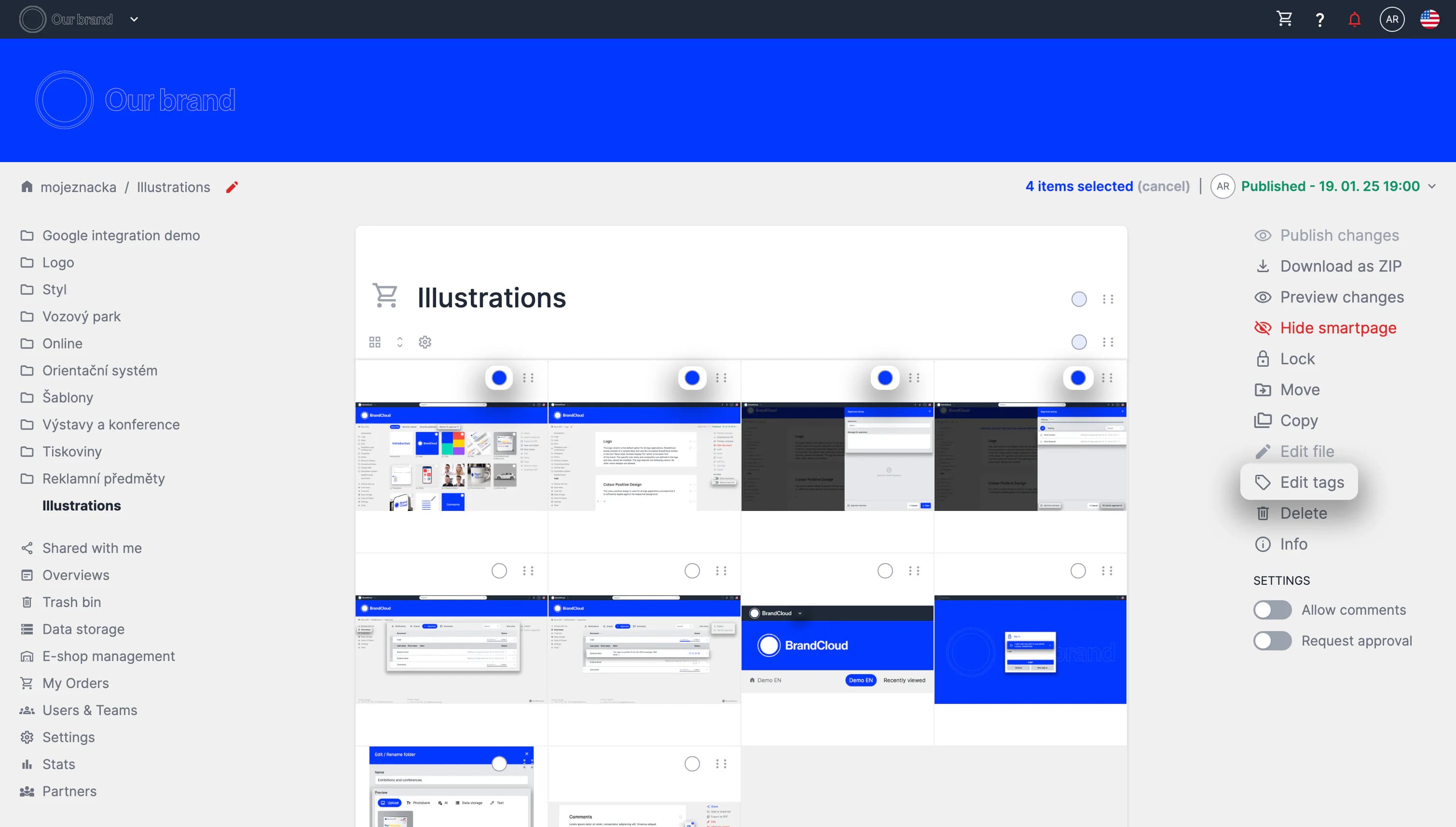
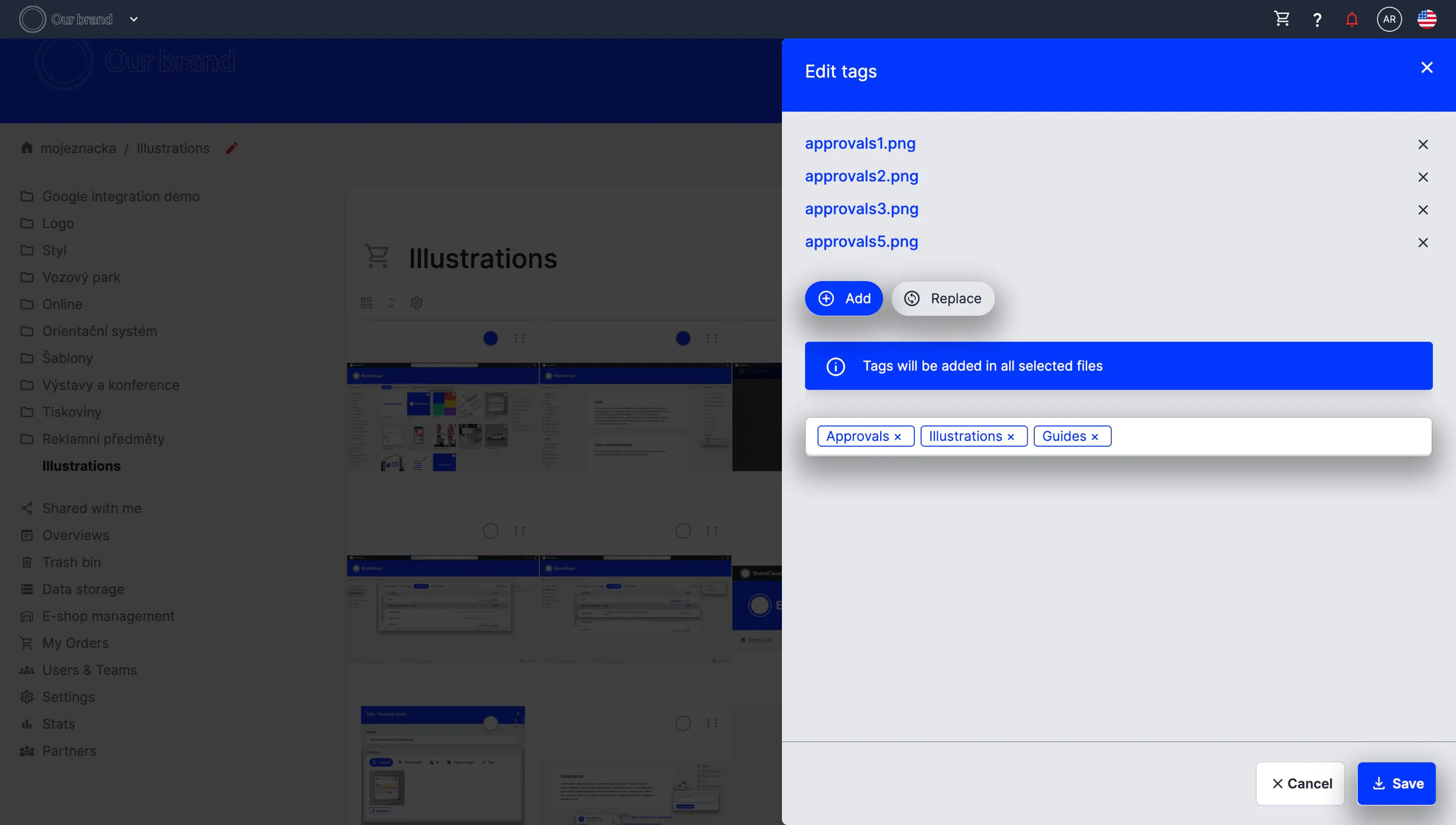
3. To add new tags, select Add and type the desired tags. To overwrite or remove existing tags, use the Replace tab.
4. Click Save to apply the changes.
Tagging In data storage
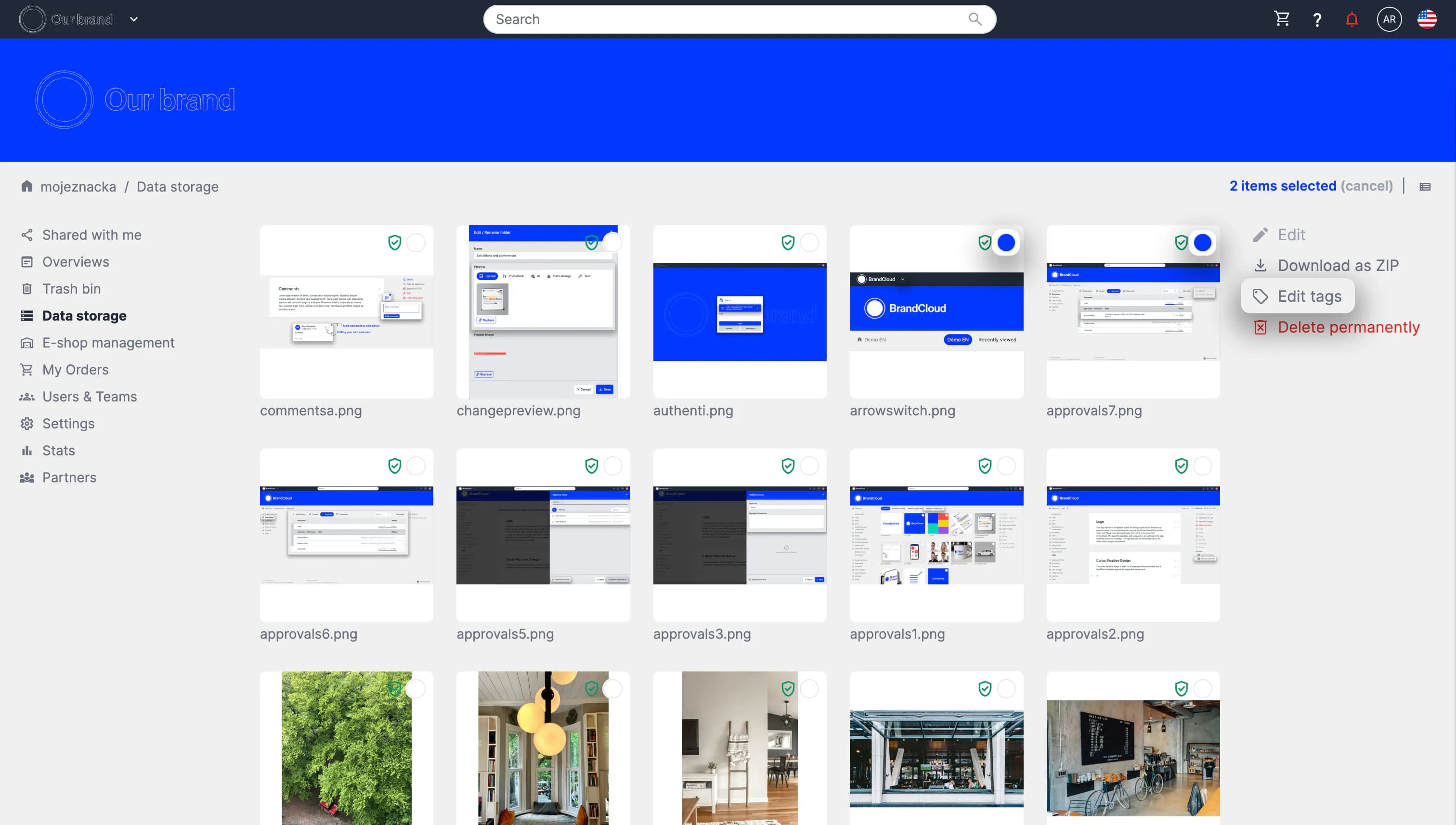
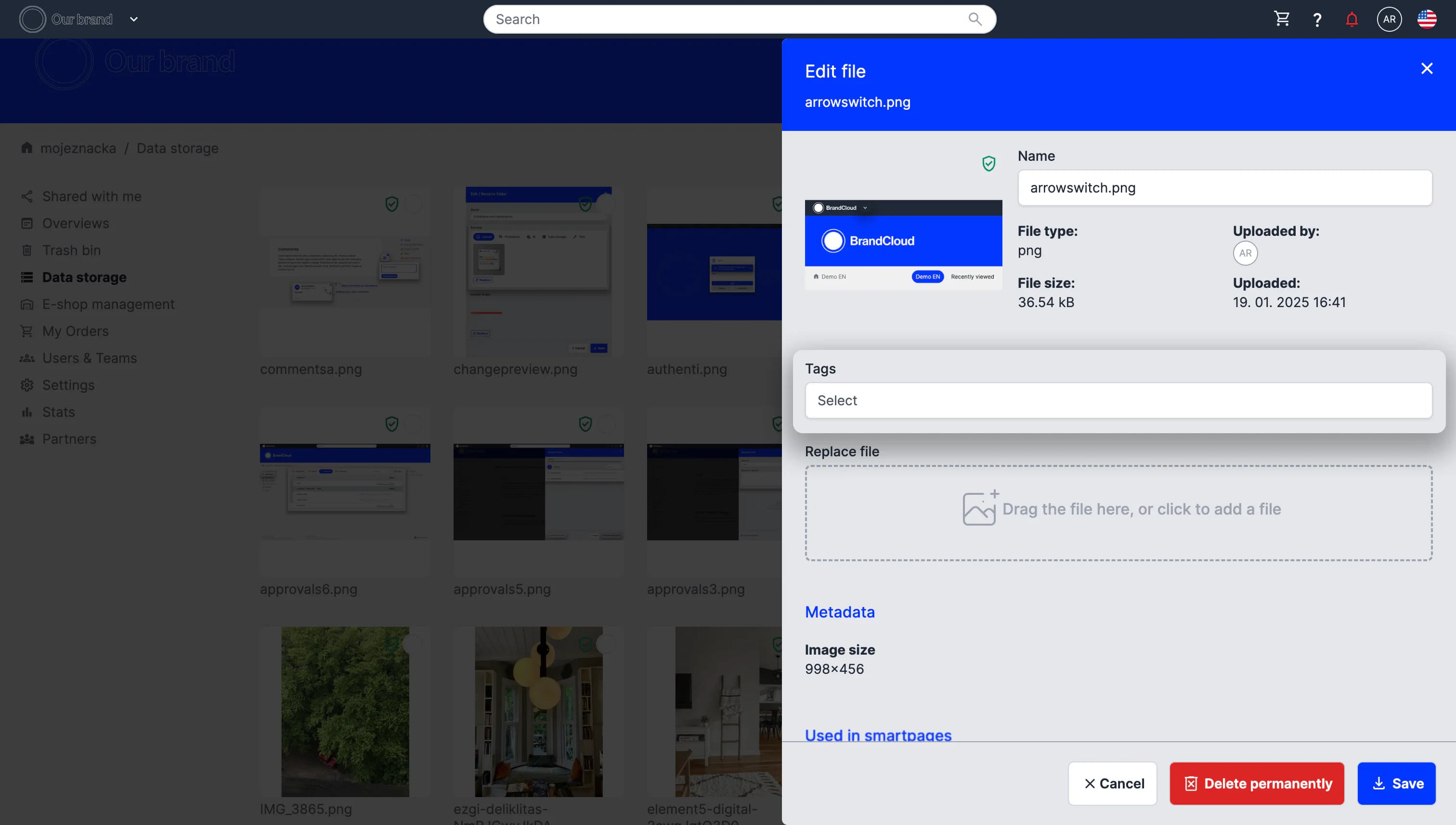
You can tag assets in the same way as on a smartpage by selecting multiple files, or you can tag individual files directly.
How to use AI tags
Images can also be tagged automatically using AI.
To do this:
- Select the files you want to tag
- Choose the automatic tagging option
Once the request is processed, 6 tags will be automatically generated for each file. If you don’t like the suggested tags, you can delete them and have new ones generated. For easy reference, tags are color-coded:
- Grey: Automatically generated tags.
- Blue: Manually entered tags.
Tutorial
What can you learn?
- 00:05 - What is tagging good for?
- 00:30 - How to tag when editing a smartpage
- 02:20 - How to tag in Data storage
- 02:47 - How to search using tags