Creating Users
You can add new users to your BrandCloud based on your plan. After creating a user, you can assign access rights according to your requirements. Access rights determine whether a user can collaborate on projects, create their own projects, or only browse and download assets.
How to create a user
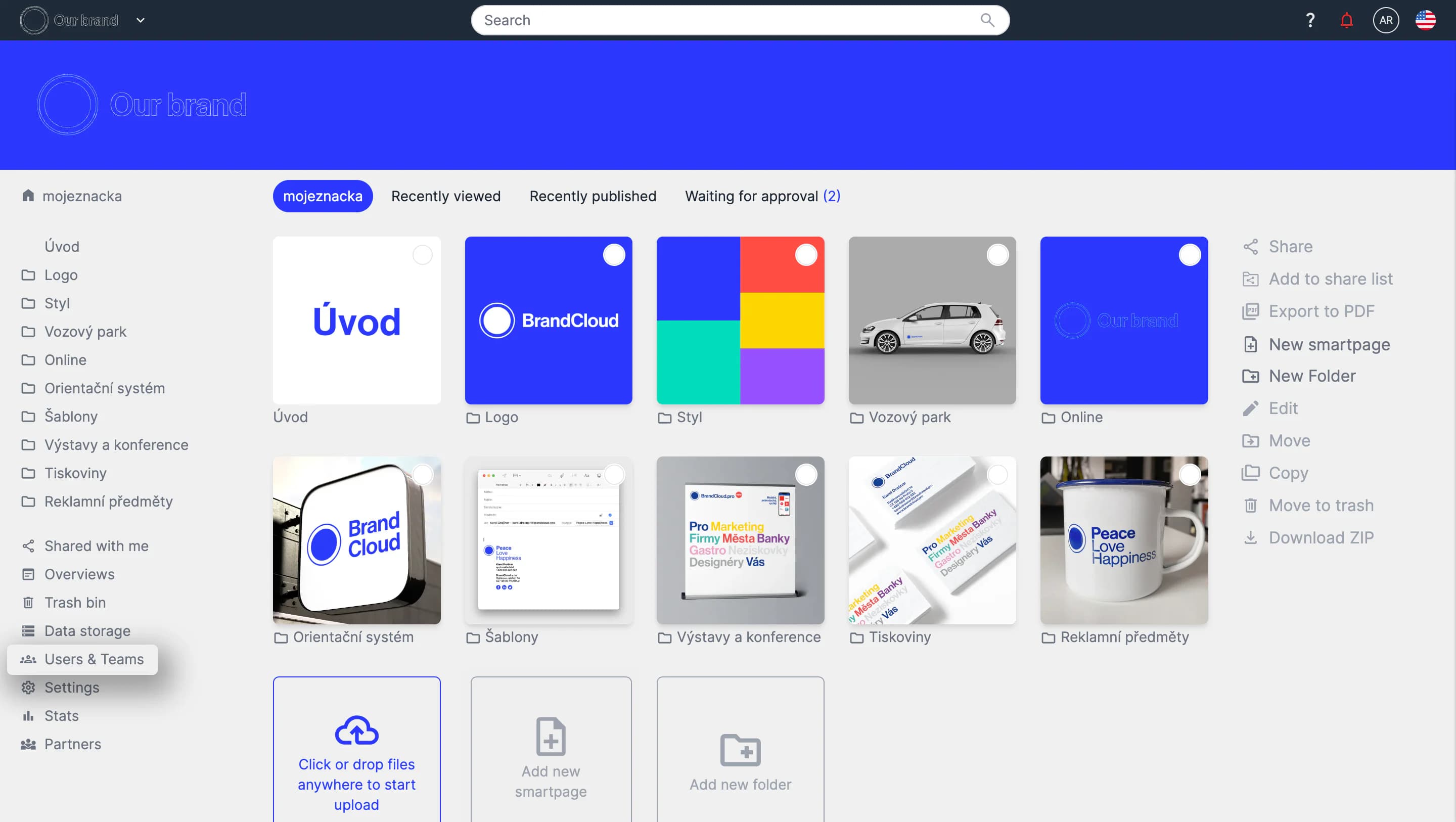
1. Go to the Users & Teams tab in the left panel.
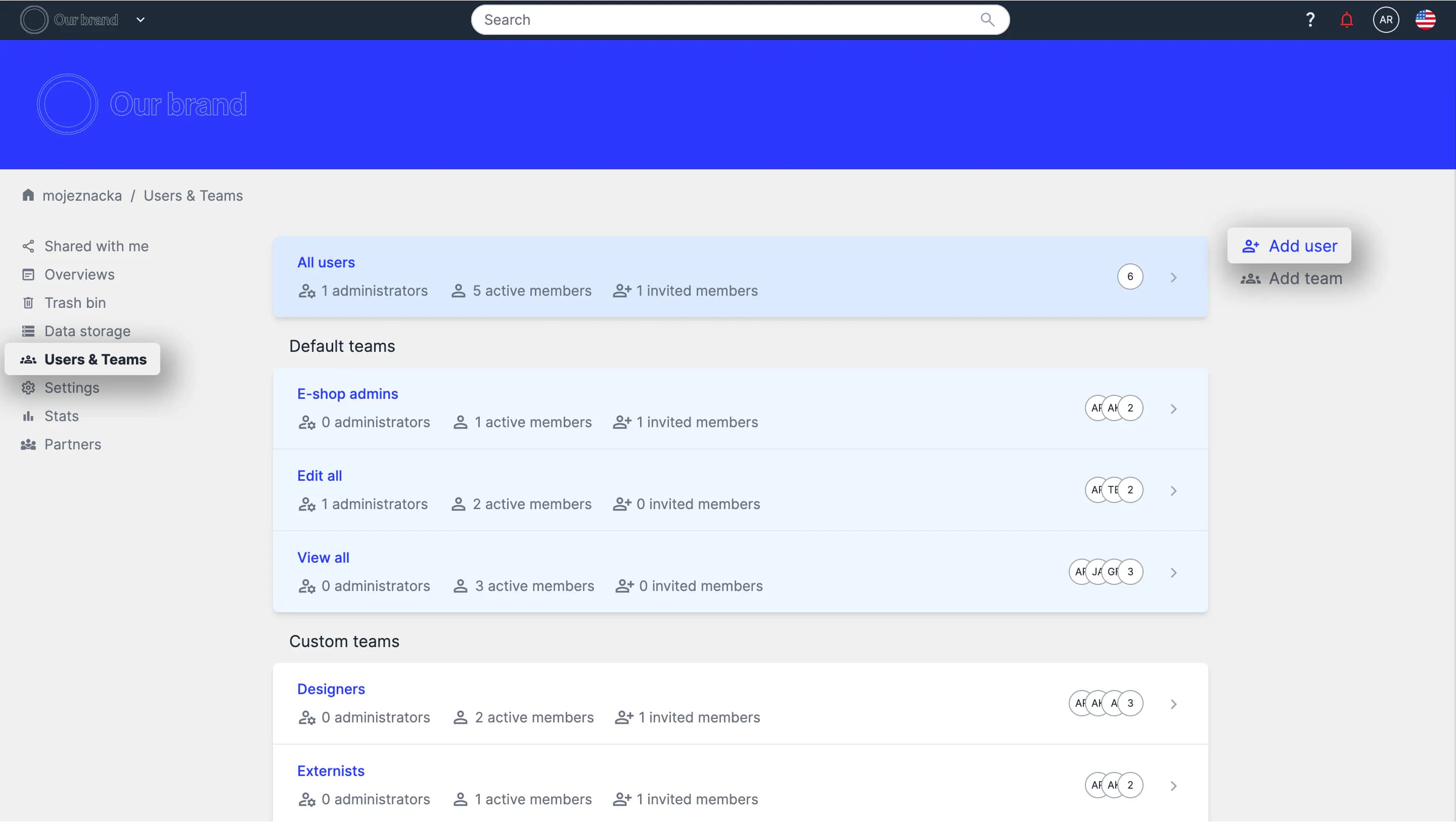
2. In the team structure view, select Add user in the right panel.
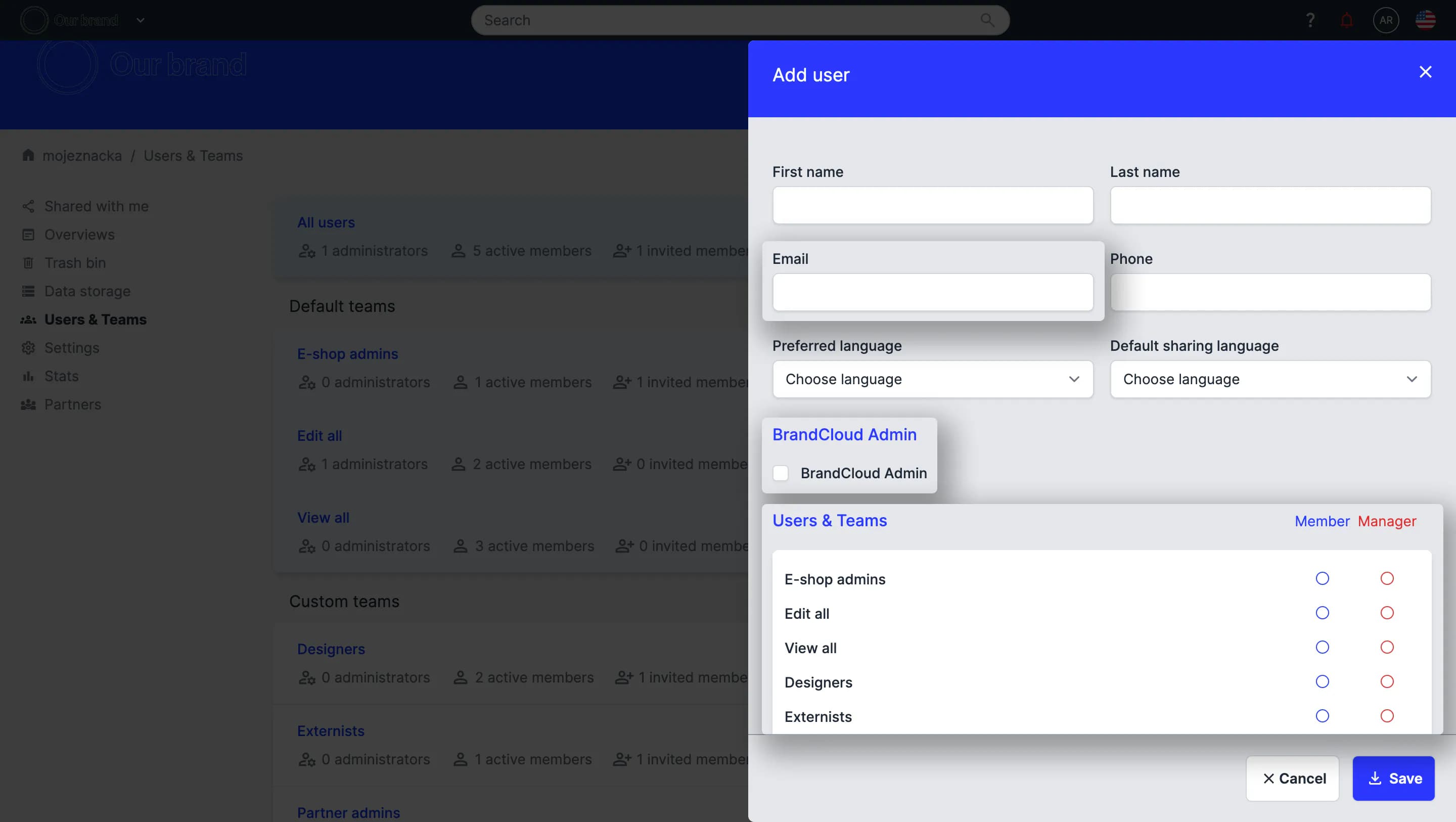
3. Enter the required information:
- Mandatory: email address, assignment to at least one team.
- Optional: first name, last name, mobile number, preferred language, sharing language (the user can update these later).
- Administrator: enable this option if the user should manage the entire BrandCloud, including users and teams.
4. Select Save.
5. The user receives an email invitation with a link to complete their profile and create a password. They are then redirected to the platform.
‼️ If you assign the user as a Member, they cannot manage teams or users. A Manager can manage the specific team they are assigned to, including its users and access settings.
Tracking the first login of an invited user
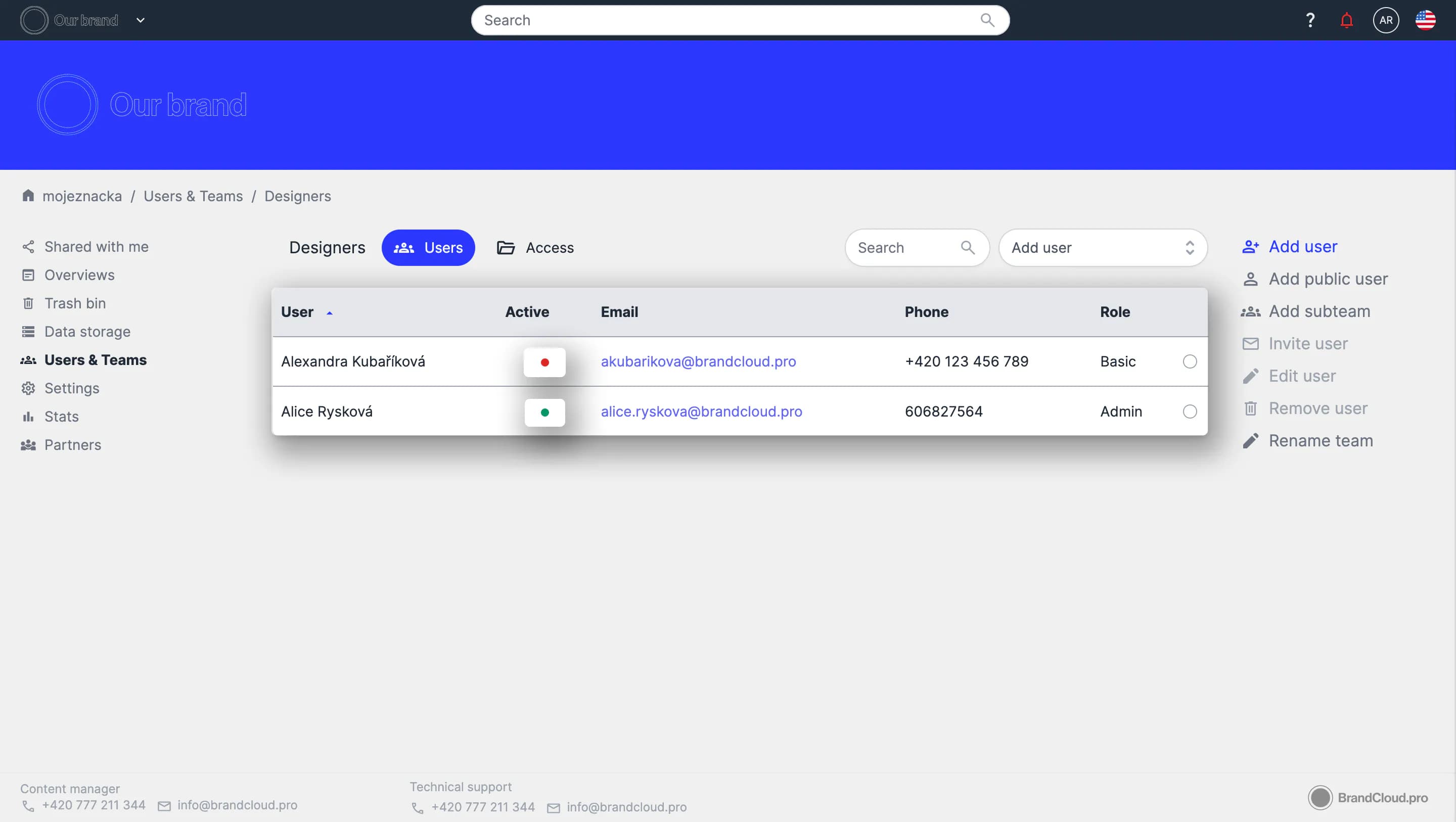
You can verify if a user has activated their account in the All users team or in the team where they were added.
A red indicator means the user has been invited but is not active yet.
A green indicator means the user has created an account and is active.
Tips and alerts for adding users
- You can add a user directly within a specific team to avoid searching for the correct team later.
- If a user has not accepted the invitation, you can resend it by selecting the user and choosing Invite user in the right panel.
- If an incorrect email is entered or the user has a new email, you must create a new profile because email addresses cannot be changed.
- After sending an invitation, you cannot edit the user’s personal data (mobile number, names, language settings). The user can update these fields in Personal settings. You can only modify team assignments and administrator rights.