User
Forgotten Password
If you cannot access your account because you forgot your password, you can reset it directly from the login page.
How to reset your password
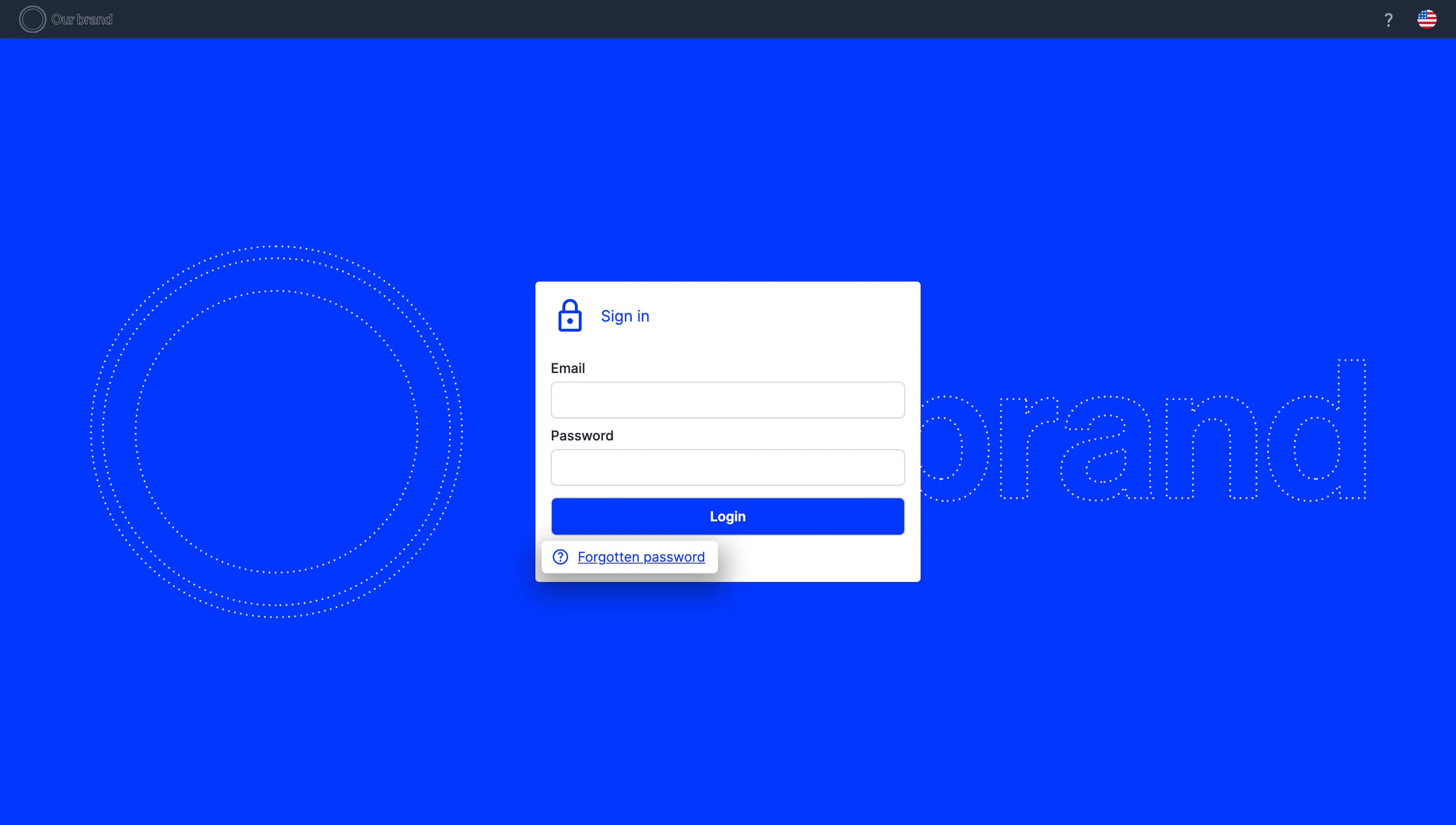
1. On the login page, select Forgotten Password.
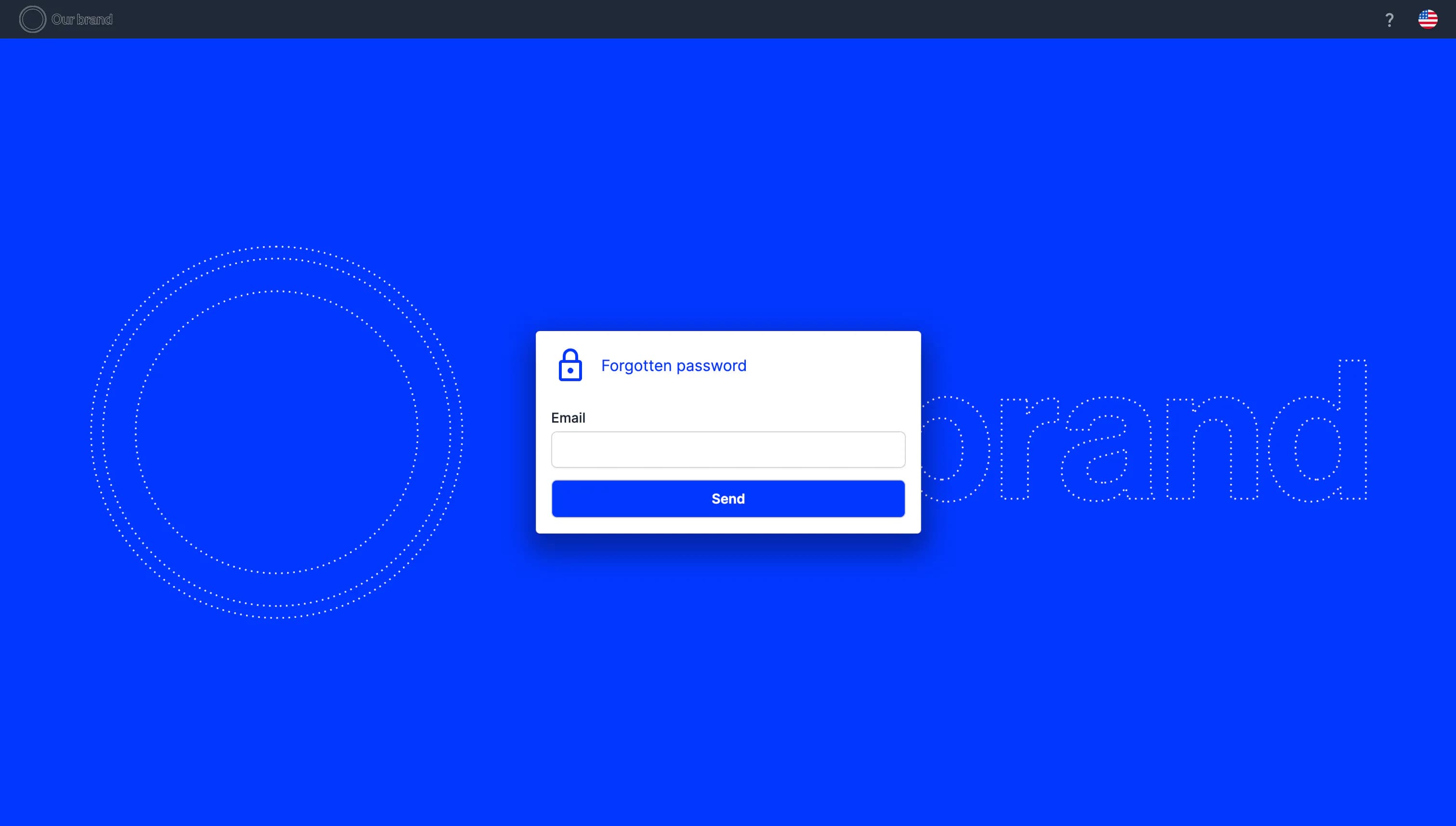
2. Enter the email address associated with your user account.
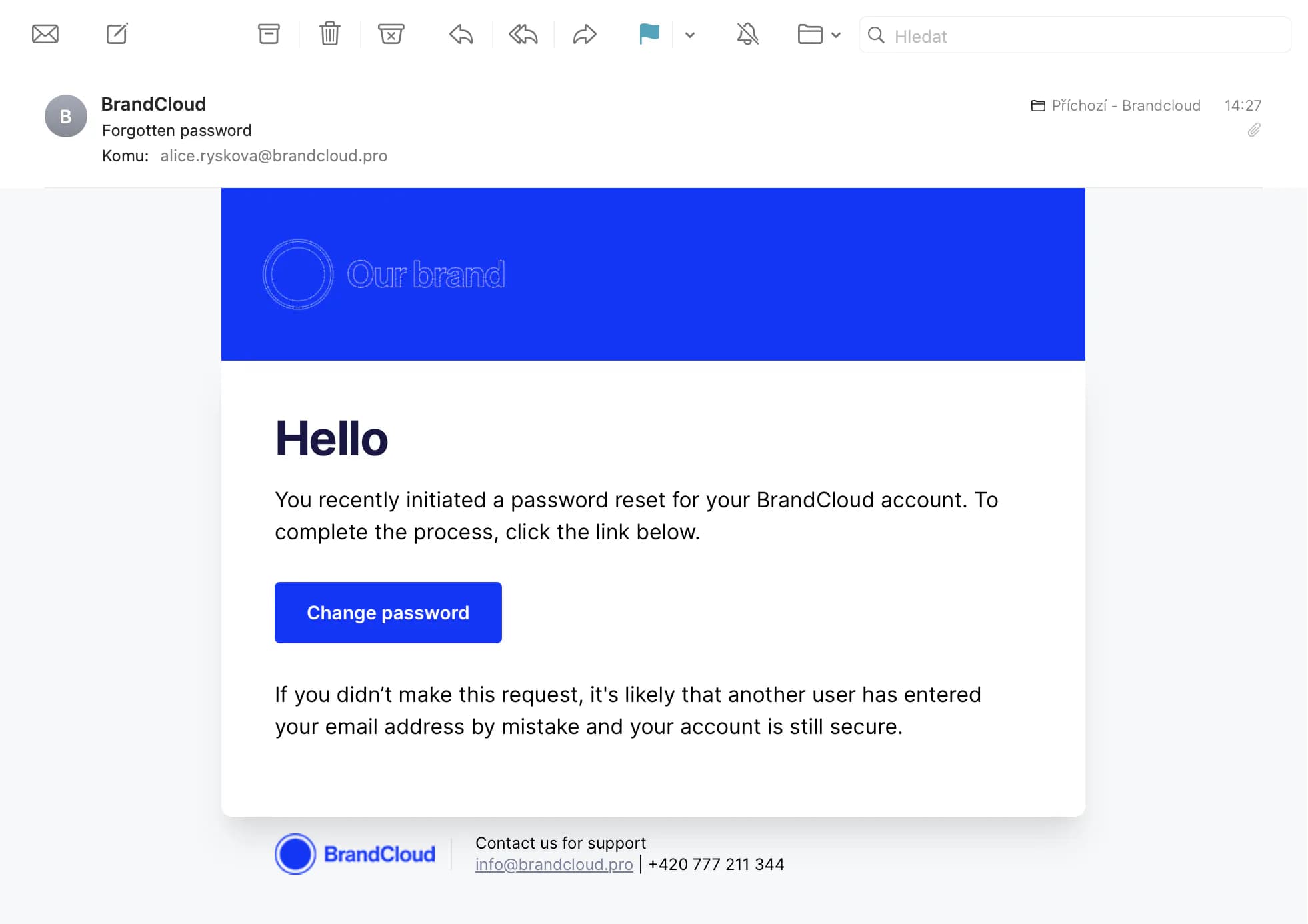
3. You will receive an email with instructions for setting a new password.
4. Select Change Password in the email. You will be redirected to a page where you can create a new password.
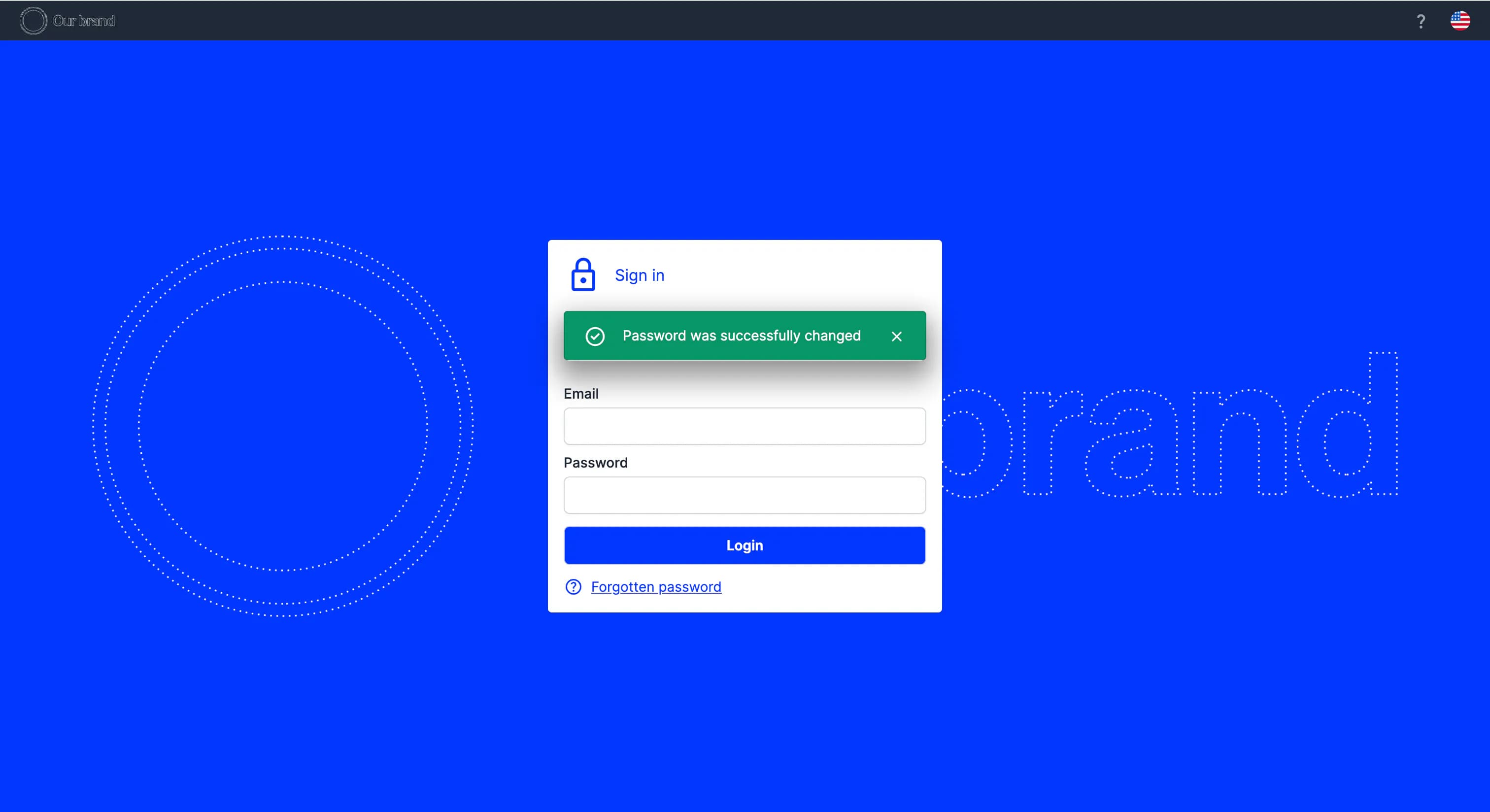
5. After you confirm the new password, you will return to the login page and sign in with your updated credentials.
‼️ If you do not receive the email within a few minutes, check your spam or junk folders.
If the reset email does not arrive
If you requested a password reset but did not receive the email:
- Check your spam or junk folder.
- Confirm that you entered the email address linked to your user account. Password reset instructions are only sent if the address matches an existing account.
- If you use a company email, contact your IT department to verify whether automated platform emails are being blocked or quarantined. Ask them to allow emails from the domain @brandcloud.pro.
- If the issue persists, contact support at info@brandcloud.pro and include all email addresses that may be associated with your account.
Tutorial
Reseting a password (01:16)