Tips and Tricks to Get You Started
1. Uploading content
Uploading and organizing content in BrandCloud is simple and flexible. The key feature is the smartpage, which allows you to add multiple elements to structure and present your content.
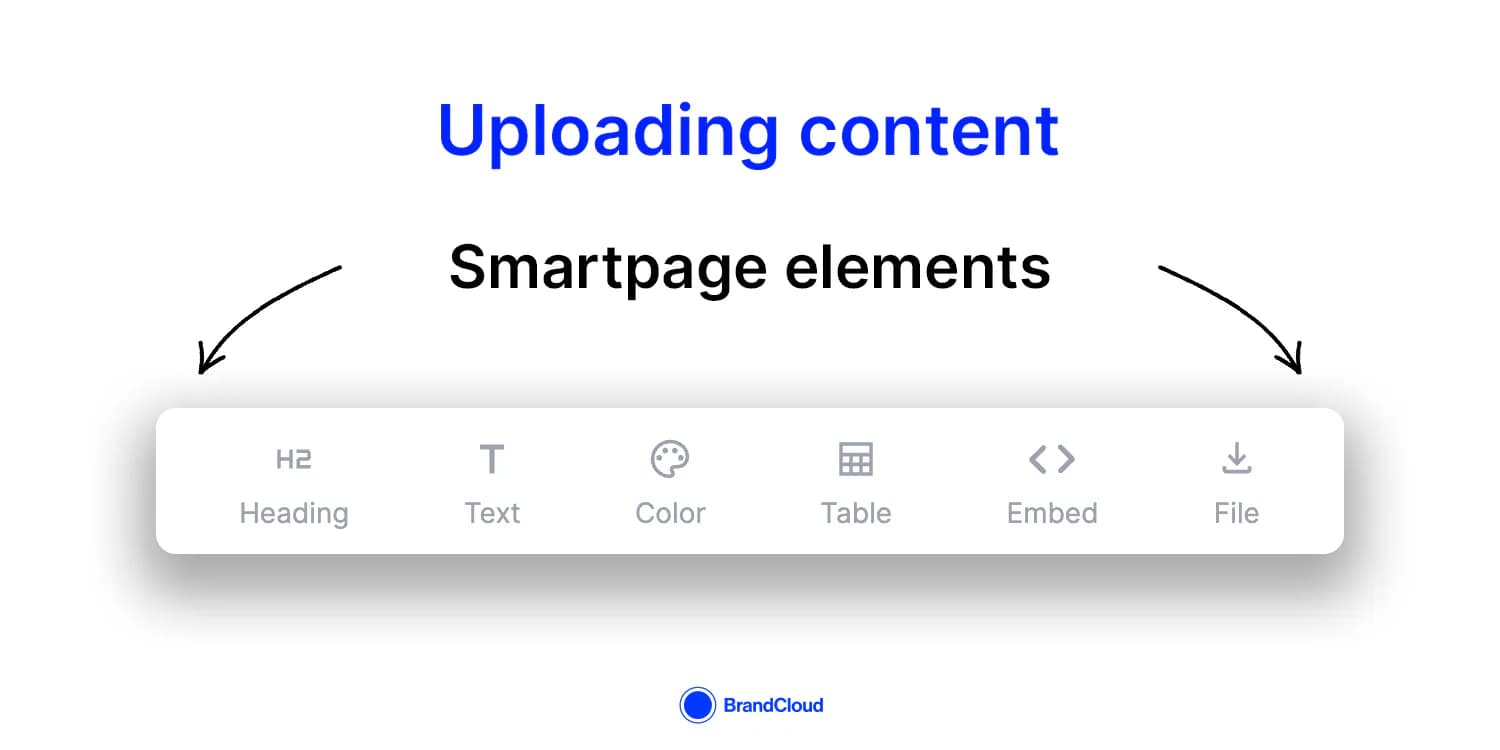
Smartpage Elements
- Page – Defines the main structural blocks of a smartpage. Use it to organize content and create logical sections.
- Heading – Adds headings or subheadings within the defined blocks.
- Text – Allows you to insert content descriptions, instructions, or other text information.
- Color – Inserts specific color values, such as corporate colors, using RGB codes. This is useful when creating brand identity materials.
- Table – Creates tables with any number of columns and rows to display structured data.
- Embed – Integrates external tools and web content directly into the smartpage. You can embed resources such as Google Docs, Sheets, Slides, email inboxes, or other web pages.
- File – Allows you to upload and attach assets directly to the smartpage. You can also connect uploaded files to Canva templates.
Each smartpage can include an unlimited number of elements, allowing you to build and organize content in a way that best suits your workflow. HERE.
2. Data organisation
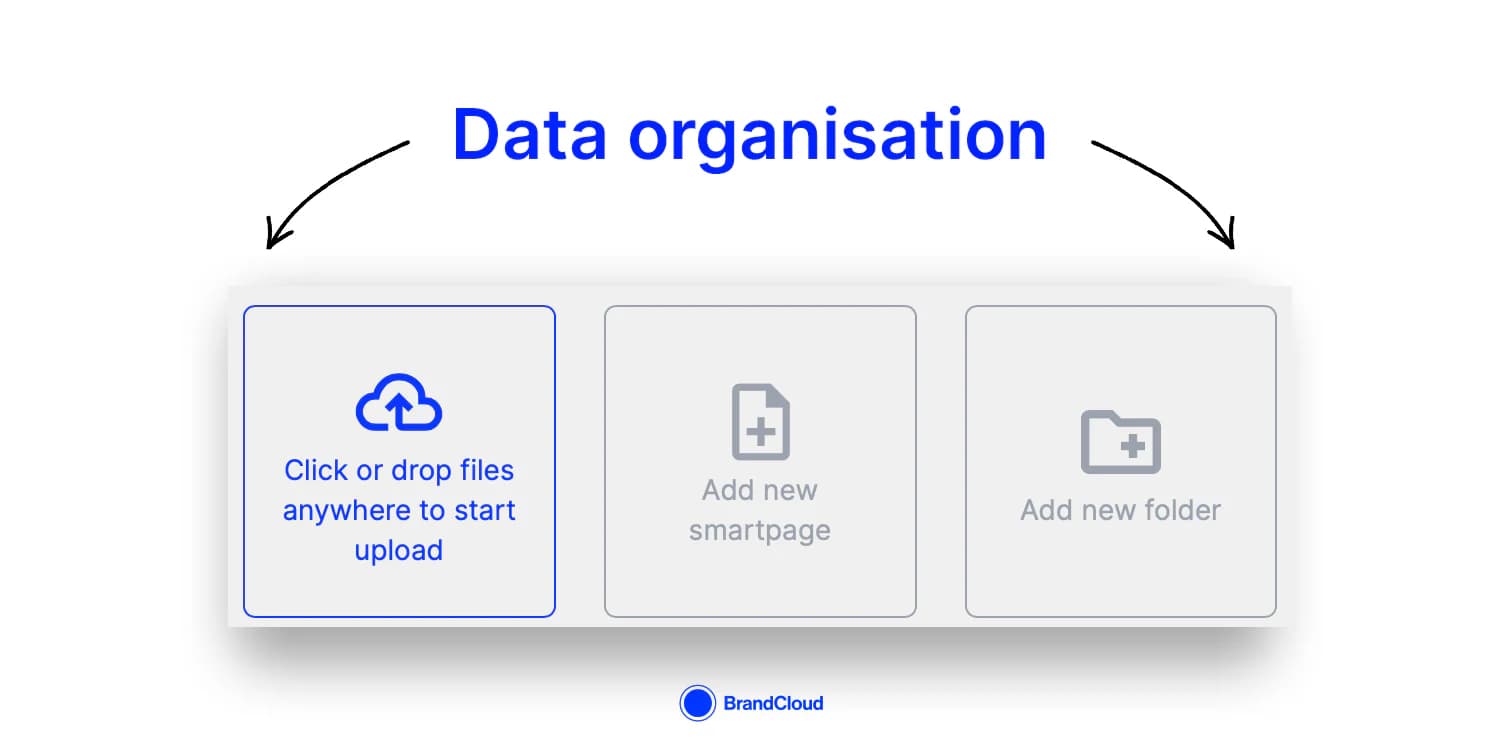
You can upload and organize your materials in smartpages and arrange them into folders.
To create a structure, use the New document or New folder buttons. Alternatively, you can upload files directly using Click or drop files anywhere to start upload. This action automatically creates a smartpage containing the uploaded content.
BrandCloud provides two structure types: tree structure and tile structure.
- Tree structure – Displayed on the left side of the page. Expand folders using the folder icon to access materials without leaving the current view.
- Tile structure – Displayed on the main page of your repository. You can set custom thumbnails for folders and smartpages to improve visual clarity and navigation. Thumbnails can be static (e.g., PNG, JPG) or dynamic (e.g., GIF).
3. Sharing with users
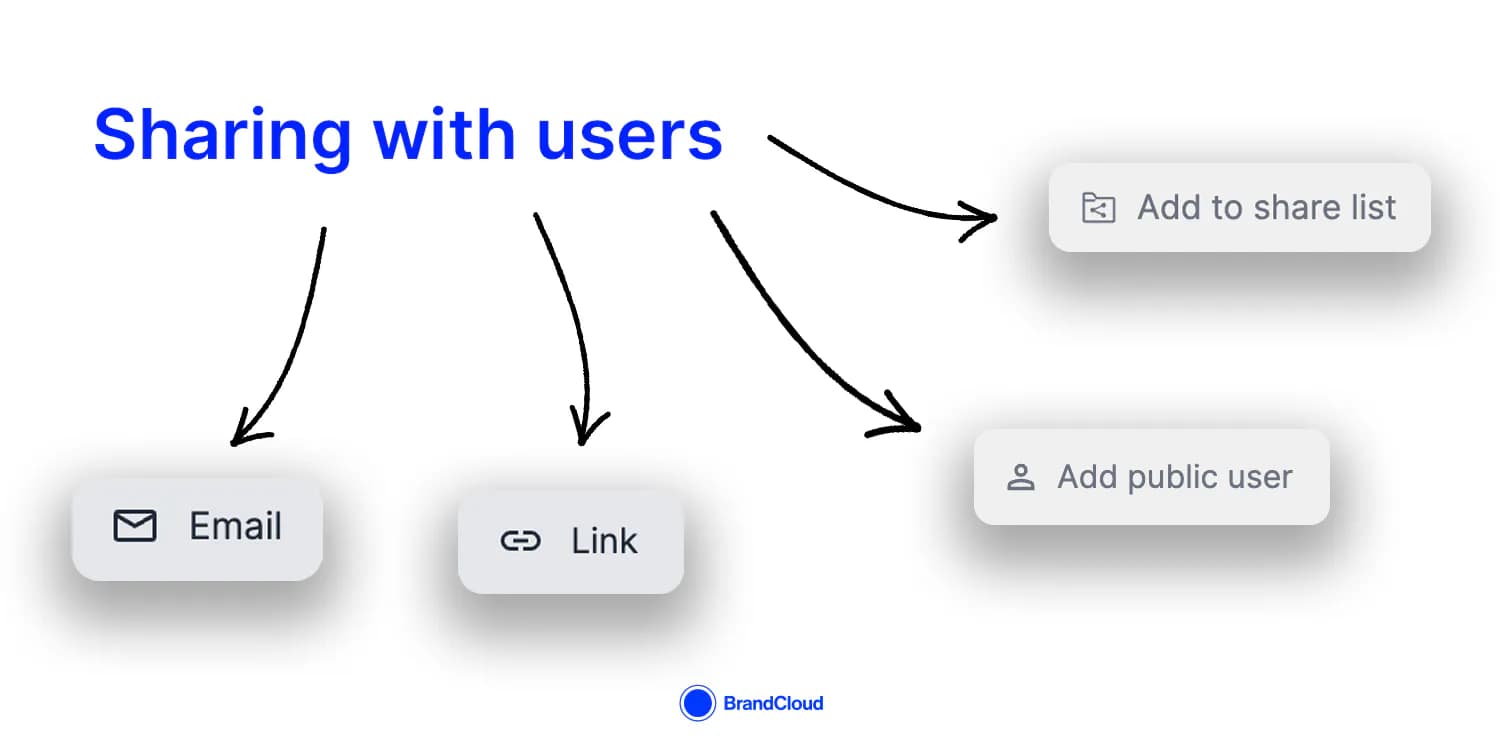
You can share files and folders with others even if they do not have a BrandCloud account. The platform offers three methods of sharing.
Sharing by Email
You can share content directly from the repository via email. Enter the recipient’s email address, subject, and an optional message. You can also set the validity period of the share and select the language in which BrandCloud will be displayed for the recipient.
Sharing via Link
You can generate a shareable link for any selected content. Assign a name to the link, define its validity period, and choose the display language. Once created, the link is automatically copied to your clipboard for easy use.
Public User Access
Public access allows you to make specific parts of your structure visible to anyone without requiring login. This option is suitable for content that should be accessible to all visitors.
For detailed setup instructions, refer to the Public user documentation.
Tip: Add to Share List
Use the Add to share list option to collect multiple files from different parts of your BrandCloud before sharing. You can then send them all at once via email or a link, depending on your needs.
For more details, see the Sharing guide.
4. Searching and filtering
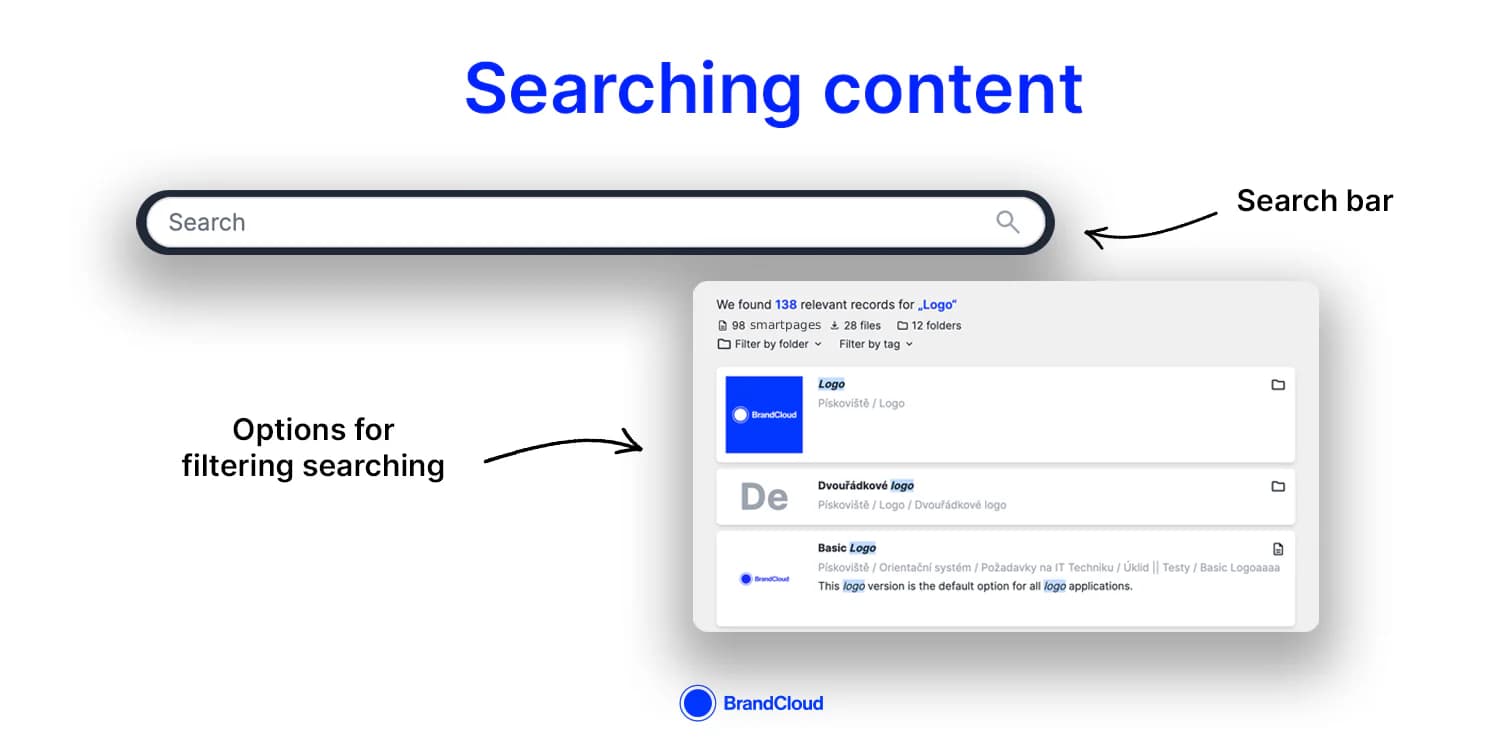
Searching helps you quickly locate content, especially in large or complex BrandCloud environments.
Use the Search bar at the top of the page to enter your keyword.
You can refine your results using the following filters:
- Filter by folders – limits results to specific folders if the keyword appears in multiple areas of your repository.
- Filter by tags – narrows results based on assigned tags, if you use them.
You can also specify the type of structure to search within, such as a smartpage, file, or folder.
Filtering enables you to find the target content faster and more efficiently.