Move & Copy
The Move and Copy functions allow you to manage and restructure content within the storage system. You can use these functions within a single repository or, if you have editing rights in multiple BrandClouds, move or copy content between them.
‼️ You can move or copy only smartpages and folders. Moving or copying a smartpage to another smartpage is not supported.
Move
When you move content, it is transferred from one storage location to another. If the new location is not accessible to some users, they will lose access to the moved smartpage. Access can be restored only if those users are part of a team with permissions for the new location or if the team’s access settings are updated.
Copy
When you copy content, it is duplicated in a new location. The original remains accessible to users with access to the source location.
How to move or copy
- Select one or more items (smartpages or folders).
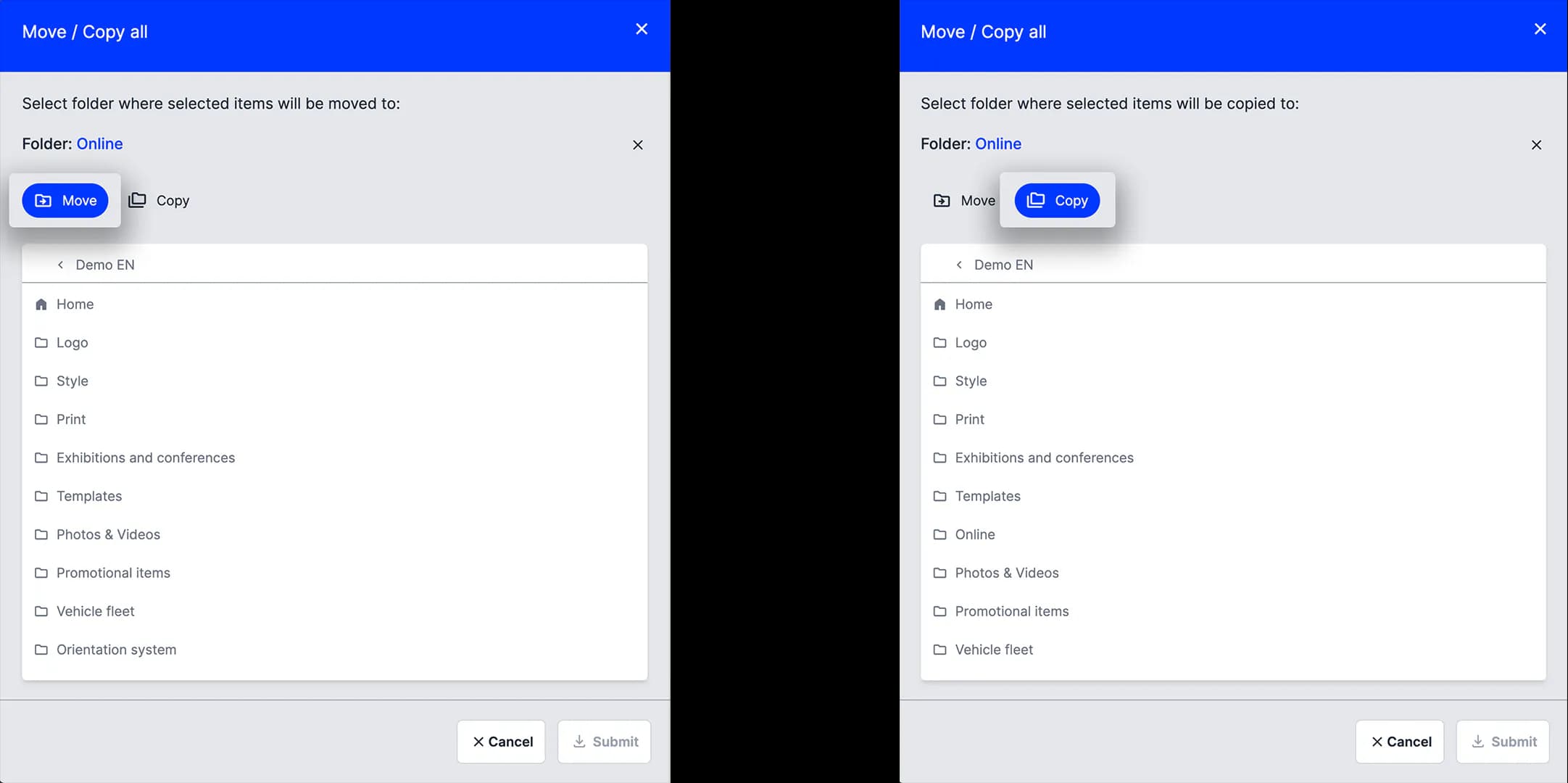
- In the right column, select Move or Copy. You can also choose these options from the pop-up window after selecting the destination.
- Navigate to the destination location.
- Select Send to confirm the action.
Moving and copying between BrandClouds
You can move or copy items between BrandClouds where you have editing rights.
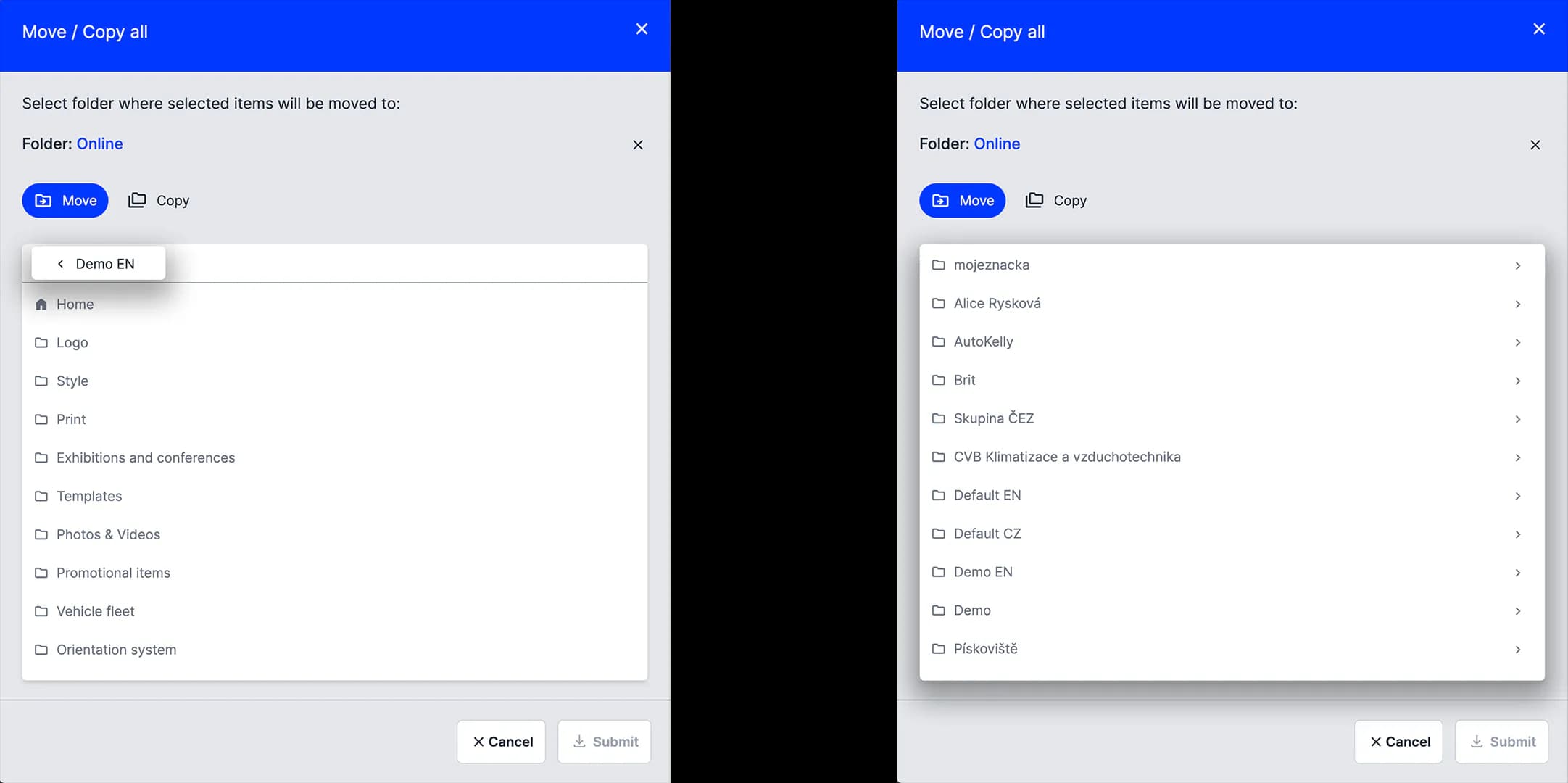
- Exit the current BrandCloud structure.
- A list of all BrandClouds available to you will appear.
- Select the target BrandCloud and complete the move or copy action.
Your access and available destinations depend on your assigned permissions in each BrandCloud.
Tutorial
What you can learn
- You can move / copy folders, documents or a part of a document
- What to do if you don't see particular content in a document