Smartpage
Editing and Versioning
Editing content, adding missing information, or updating files on a smartpage is a straightforward process.
How to edit a smartpage
- Locate the smartpage you want to modify.
- Select Edit from the right column to enter edit mode.
- Make the necessary changes to the content.
- Select Publish to apply the changes, or use Preview Changes to save progress without publishing.
Restoring previous versions
You can view or restore previous versions of any smartpage from the version history.
In edit mode, open the menu in the top-right corner of the page. You will see the following indicators:
- Published — displays the date and time of the last published version.
- Last modified — displays the date and time of the last edit.
Open the drop-down list to access the version history. From there, you can:
- Restore and publish a previous version.
- Copy specific content from an older version and paste it into a new one before publishing.
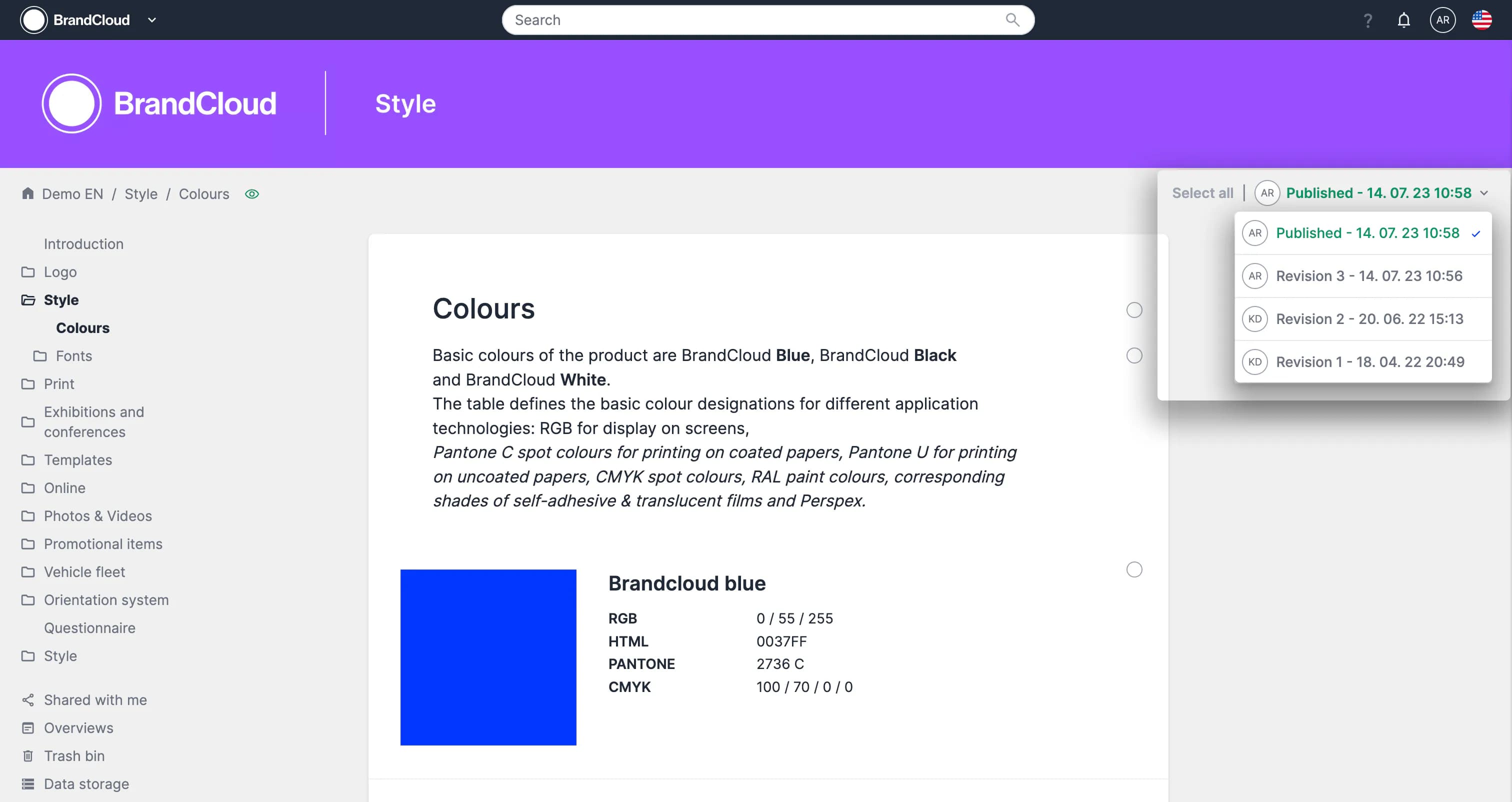
On each smartpage you can find a drop-down list with the history of its versions, on the left side of the bar you can also see an icon indicating the author of the version (in this case KD, AR).