The same document needs different settings for print and the web. A print-ready PDF is prepared to meet the printer’s requirements. On screen, however, it may be unnecessarily large, slow to open or display marks intended for print production.
Before publishing, it is therefore not enough to check that the file opens. How quickly it loads, how comfortably it reads and how easily people can navigate it matter too.
File size affects the reading experience
Images prepared for high-quality printing can make a web PDF unnecessarily large. More image data means longer download times. The difference is more noticeable on a phone or a slower connection.
Preparing a web version mainly involves adjusting:
- Image resolution to suit how the document will be viewed.
- Compression to reduce the amount of data.
- Document loading, which can be optimised to display pages progressively.
The smallest file is not necessarily the best. Excessive compression reduces sharpness and fine detail. The result should therefore also be checked when zoomed in.
Bleed and crop marks do not belong in a web PDF
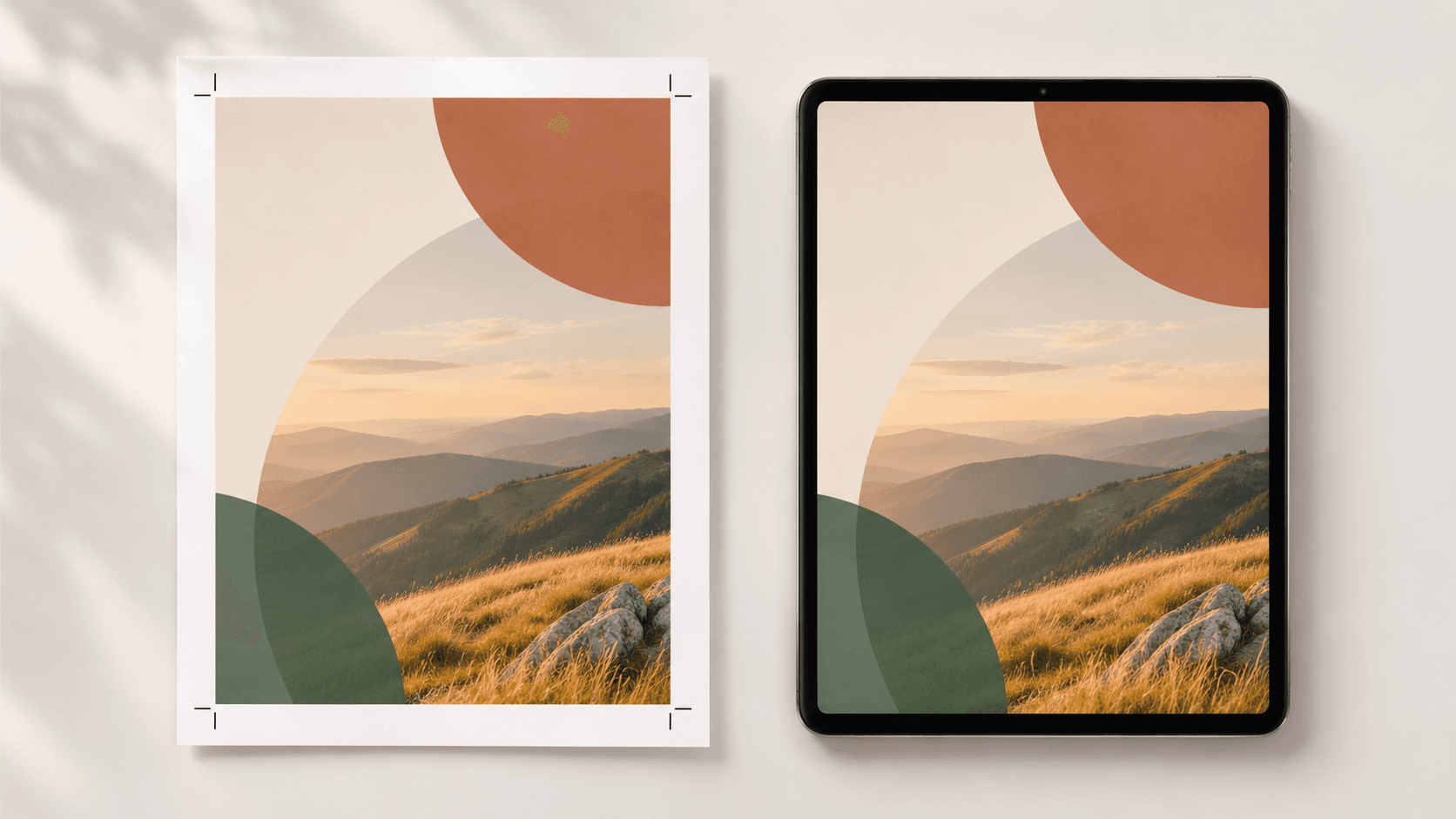
Readers should see the finished page at its final dimensions. A print-ready PDF may include additional elements needed during production.
Crop marks indicate where the paper should be trimmed. Bleed is the area of artwork that extends beyond this boundary. It helps prevent white edges if the cut is slightly misaligned.
On screen, these elements can create unnecessary space around the content. Printer’s marks should therefore be disabled and bleed excluded when exporting for the web.
A web PDF needs working navigation
A smaller file alone does not guarantee a comfortable reading experience. Features that make a document easier to use on screen may not have been preserved during the print export.
For the web version, it is worth checking:
- Links and bookmarks that make it easier to move between sections.
- Text search so readers do not have to go through every page.
- Document structure, which also helps people using screen readers.
Fonts should remain embedded. This reduces the risk of font substitution on another device, which could change the document’s appearance.
How to prepare both versions without unnecessary revisions
Exporting from the original design gives you the most control over the result. Reducing the size of an existing print-ready PDF can help with file size, but it will not resolve all the differences on its own.
The process can be straightforward:
- Check the printer’s requirements and create the print version accordingly.
- Create a separate web export with appropriate compression and the final page dimensions.
- Check the web PDF on both a computer and a phone, including links and readability.
- Clearly label the purpose of both files to prevent mix-ups when sharing them.
The recipient needs the right version too
Preparing two PDFs makes sense when their intended use remains clear throughout the workflow. The .pdf extension alone does not reveal the difference.
When working with BrandCloud, it makes sense to include information about the intended use of each version. Recipients then do not have to guess whether a file is meant for the printer or the web. Whenever the content changes, both versions need to be checked and their latest versions made available.
A well-prepared PDF suits the environment in which it will be used. Separate exports and clear handovers help prevent a high-quality print file from becoming an inconvenient document to read online.